Source: MiniDisc Wiki contributors · September 3, 2026 snapshot · CC BY 4.0, except where otherwise credited.
Attribution and changes
Adapted from “Homebrew mode”. Links, layout and file names normalized; missing database fields restored; remote embeds replaced with links. Manufacturer manuals and separately credited photographs retain their original attribution.
Homebrew mode
This requires a Supported NetMD Device.
Using the overflow menu, you can enable homebrew mode (formerly factory mode.) This mode is experimental and comes with no warranty.
Once you click, there is a warning popup. It is important to read and understand it.
You will see the recorder's firmware version (which is important for reporting issues to developers, and decides which homebrew features are available.)
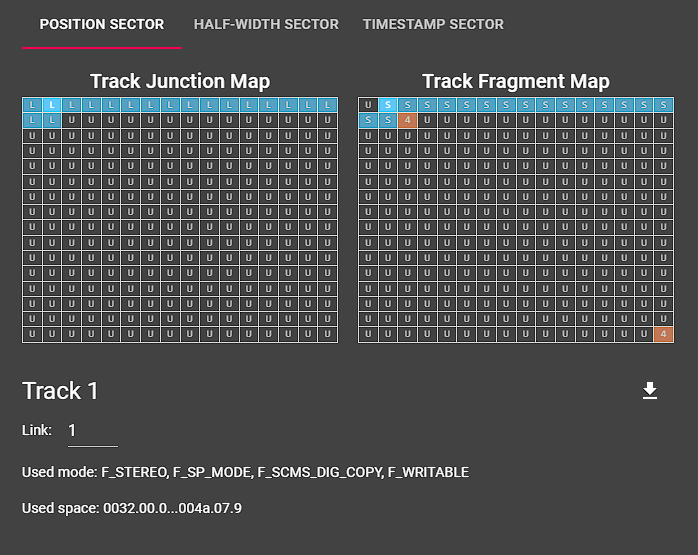
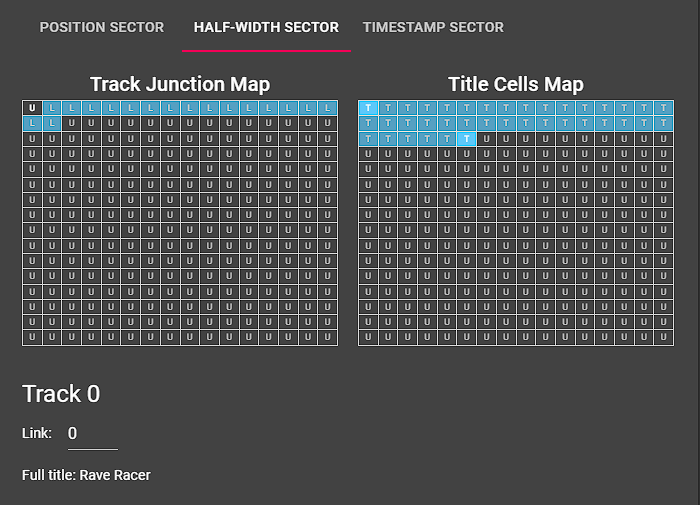
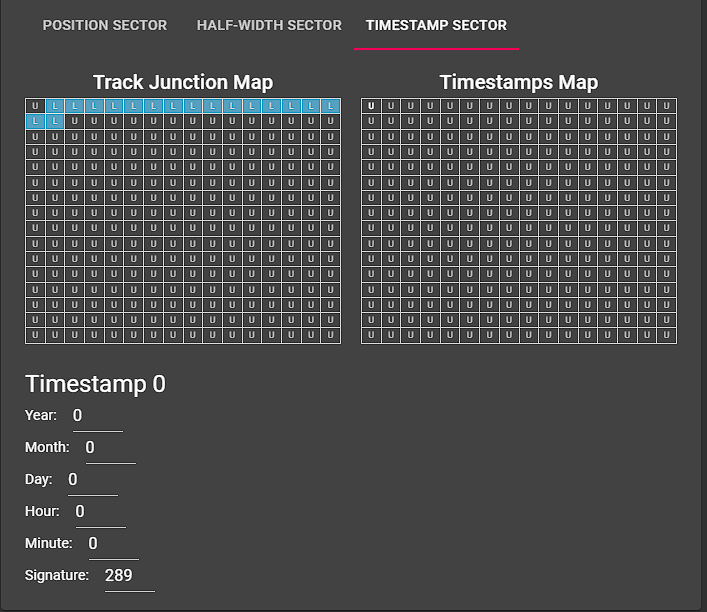
The homebrew mode screen has three main sections for manipulating the disc ToC: (under construction)
Position sector
Half-width sector
Timestamp sector
Homebrew mode overflow menu
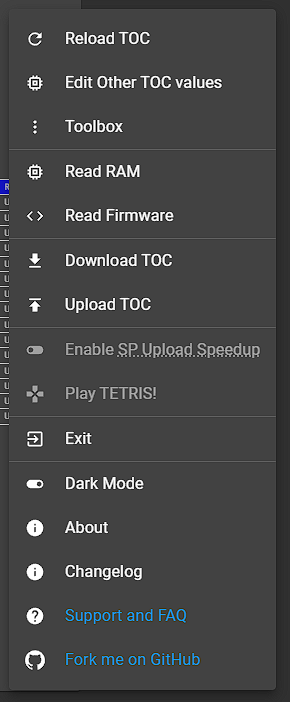
In homebrew mode, the overflow (ellipsis) menu has different options. These are:
- Reload ToC - reloads the disc's Table of Contents
- Edit other ToC values - a popup with advanced ToC options
- Toolbox - additional features
- Strip SCMS information - removes the SCMS flag (digital copy) from a disc
- Archive disc - copies the whole disc at once, including ToC
- Note: On Apple computers you may need to enable "Use the slower exploit for ATRAC ripping" under settings
- Read RAM - for developers, copies the recorder's RAM to the PC
- Read firmware - for developers, copies the recorder's firmware to the PC
- Download TOC - copy the disc's Table of Contents to a file for backup or manipulation
- Upload TOC - replace the disc's ToC with one previously downloaded above
- Enable SP upload speedup - have the recorder copy tracks at faster than 2x speed
- Tetris - a fun proof-of-concept showing how talented the MD hacking scene is