Source: MiniDisc Wiki contributors · September 3, 2026 snapshot · CC BY 4.0, except where otherwise credited.
Attribution and changes
Adapted from “Managing tracks”. Links, layout and file names normalized; missing database fields restored; remote embeds replaced with links. Manufacturer manuals and separately credited photographs retain their original attribution.
Click on a track to select it. The disc title will be replaced with options. After selecting one track, you can select more tracks by clicking them. You do not need to hold Ctrl or Cmd to select multiple tracks.
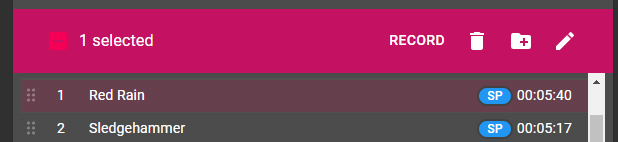
Left to right, these options are:
- selection - dash = some tracks are selected; tick = all tracks selected
- record - real-time recording to PC using the line output (see below)
- delete - remove the track from the disc
- group - place sequential tracks in a group (see below) (disabled when non-sequential tracks selected)
- rename - change the title of a track (disabled when multiple tracks selected)
Use the 6 dot "grip" on the left of each track to move them up and down the ToC and change the track order.
If most options are disabled, the disc may be write-protected. Check the write-protect tab on the disc (open = writable; closed = protected)
Groups
Web MiniDisc Pro supports the MiniDisc's Group feature. Groups are supported by most MiniDisc players, but will still play on older ones.
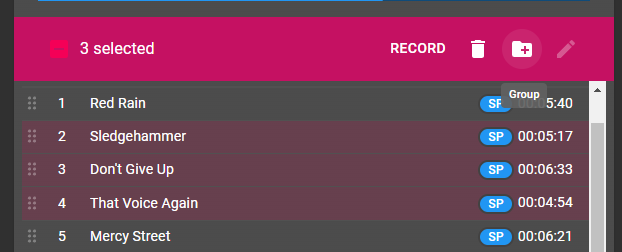
Groups do not work like playlists. Grouped tracks must be consecutive. Multiple groups are supported, but not nested groups. Groups are often used for separate albums (one group for each) or chapters for audiobooks (one group for each chapter.)
Select the tracks you wish to include in your group. Then select the Group button:
To remove a group, click the trash can icon. The group will be removed but the tracks will remain.
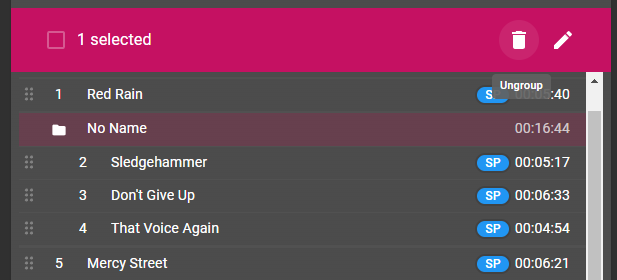
TOC changes such as groups do not save until you press "Stop" and/or disconnect the USB cable.
Full-width characters
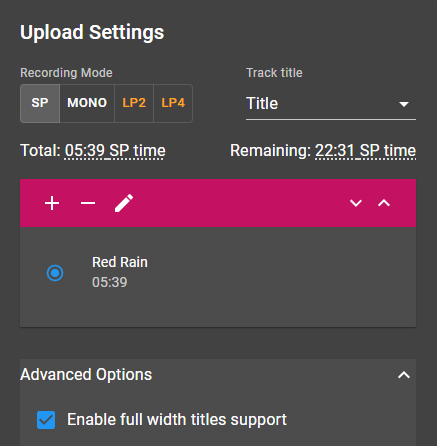
MiniDisc can use Japanese characters (hiragana and kanji) in disc and track titles. Web MiniDisc Pro supports editing these after enabling a setting in the Overflow menu.
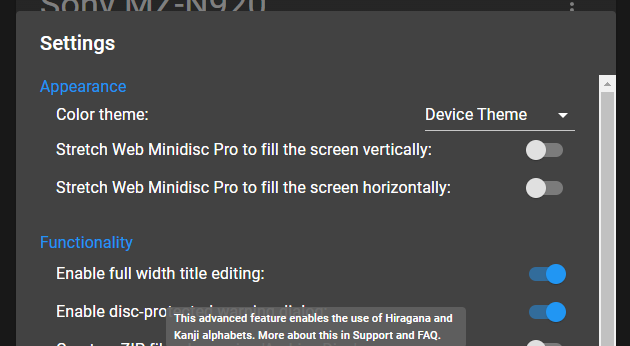
Notes on full-width characters
MD uses Shift-JIS encoding and does not support Unicode. Other full-width or 2-byte characters, such as Korean Hangul, are not supported.
Full-width entries use a separate entry that is only shown on a Kanji-capable device (such as a remote) - otherwise the half-width field is shown. Half-width titles are still shown on low resolution screens (i.e. the on device screen of the MZ-N920) even if the device itself supports full-width remotes.
Adding full-width titles
Once the setting shown above is enabled, all track title editors will show two fields:
- half-width characters such as the Latin alphabet and some kana
- full-width characters such as kanji and other kana
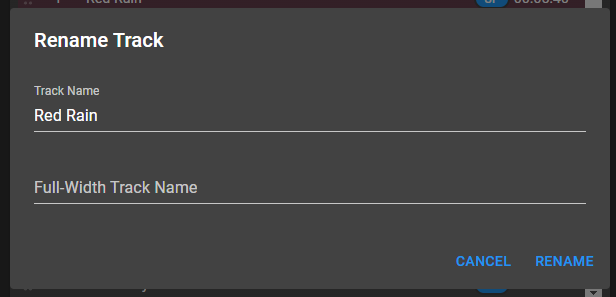
The full-width title option is also available when copying tracks.
Attempting to use characters not supported by Shift-JIS may result in errors or characters that cannot be displayed.
Recording or downloading tracks
Web MiniDisc Pro has two ways to copy tracks on a MD back to the PC: recording and downloading. The Sony MZ-RH1 also allows downloads similar to the exploits method below.
Record is the default option and supported on more equipment than downloading.
Record
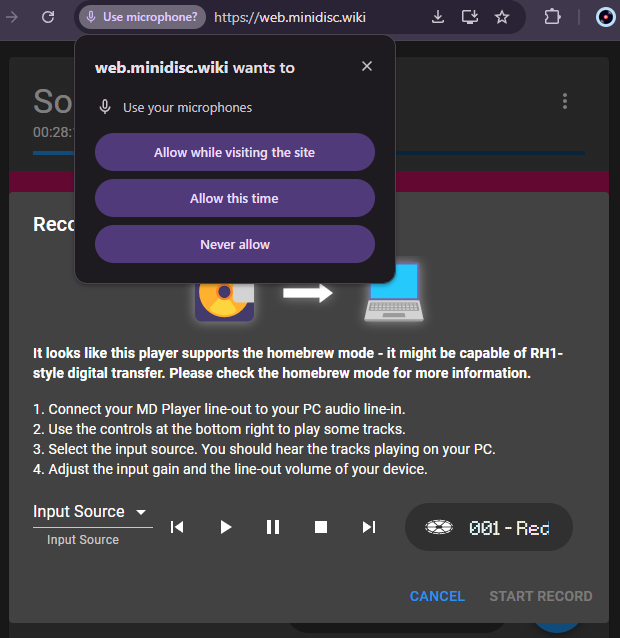
"Recording" plays the track via the 3.5mm output, which you connect to the Mic or Line In on your computer. The device will play the track(s) into your PC, and Web MiniDisc Pro will record the track via the browser's microphone input feature. It is a more convenient way to copy MD to PC without additional tools like Audacity.
Download
This requires a supported NetMD device.
"Downloading" uses reverse-engineered features in netmd-exploits to copy the ATRAC files from the MD as downloadable files. Not all equipment supports this. To enable downloading, choose "Enable Homebrew mode ripping in main UI" from the Overflow Menu.
Once this is enabled, the "record" option in the app will be replaced with "download" - which will read the selected tracks and download ATRAC or ATRAC3 files via the browser. Also see convert-atrac if needed.
This feature is experimental and may have errors or issues. Please contact the development team to report bugs.
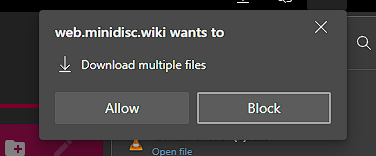
If you select multiple tracks, all will be played for recording or downloaded. Most browsers will show a warning before downloading multiple files.
If you get the following error when downloading: Cannot convert to WAV and use NERAW files at the same time!
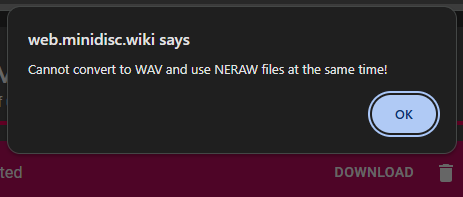
This is due to you having "Download raw streams from netmd-exploits (expert feature)" enabled in Settings. Disable this to allow files to be downloaded as .aea or .wav.
Playing tracks
To sample a track while connected to Web MiniDisc Pro, use the playback buttons at the bottom of the screen.

These buttons control the playback on compatible devices, and are hidden on incompatible ones. The playback comes through the device's own 3.5mm or RCA jack.